
Show your union spirit with SEIU 721 video background for Zoom and Teams virtual meetings. Click the download link above each image to download then follow the applications instructions on how to change your background.
Desktop instructions for changing your zoom background image
Change your virtual background before a meeting
- Sign in to the Zoom desktop app.
- In the top-right corner, click your profile picture, then click Settings.
- Click the Video & effects tab.
- Click the Virtual backgrounds tab.
Note: If you do not see the Virtual backgrounds tab and you have enabled it on the web portal, sign out of the Zoom desktop app and sign in again. - (Optional) Choose from the following options to change or remove your virtual background:
Note: If you are currently in a meeting or webinar with your video on, your virtual background will change in the live session if you change it from these settings.- Click None to remove your virtual background.
- To upload your own virtual background, click the add icon
 and choose if you want to upload an image or a video. Then continue by choosing a file on your device. If prompted, click Download to download the package for virtual background without a green screen.
Change your virtual background during a meeting
(Optional) Click the I have a green screen toggle if you have a physical green screen set up. Ensure that you are using a solid background color when this option is enabled. You can then click on your video to select the correct color for the green screen.
Join a meeting on the Zoom desktop app.
In the meeting controls toolbar, click the arrow icon  next to Video .
Click Video & effect settings.
The Video & effects side panel will open.
Below your video preview, click the Virtual backgrounds tab, or scroll down to the Virtual backgrounds section.
(Optional) In the Virtual backgrounds section, choose from the following options to change or remove your virtual background:
Note: If you are currently in a meeting or webinar with your video on, your virtual background will change in the live session if you change it from these settings.
To upload your own virtual background, click the add icon and choose if you want to upload an image or a video. Then continue with choosing a file on your device. If prompted, click Download to download the package for virtual background without a green screen.
Desktop instructions for changing your Teams background image
Change your background in Teams
Before a meeting
- Go to your Teams calendar.
- Select a meeting and select Join.
- From the pre-join screen, select Video effects
.
- To blur your background, select the dropdown arrow next to Blur and choose Standard blur or Portrait blur.
- Select a Teams background to apply it to your video feed, or upload and apply your own.
- To use an image of your own, select More video effects > Add new
and then select one to upload from your computer. Make sure it’s a .JPG, .PNG, or .BMP file.
- To use an image of your own, select More video effects > Add new
- To blur your background, select the dropdown arrow next to Blur and choose Standard blur or Portrait blur.
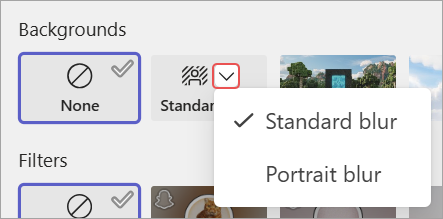
To turn off background effects, select None 
Note: If you don’t see this option in the menu, the feature might not be available on your device.
During a meeting
Select Apply.
Join a Teams meeting.
In your meeting controls, select More actions 
Select Video effects.
To blur your background, select the dropdown arrow next to Blur and choose Standard blur or Portrait blur.
Select a Teams background to apply it to your video feed.
Select Add new
Select Preview to view the background before you apply it.